
OBJECTIVE:
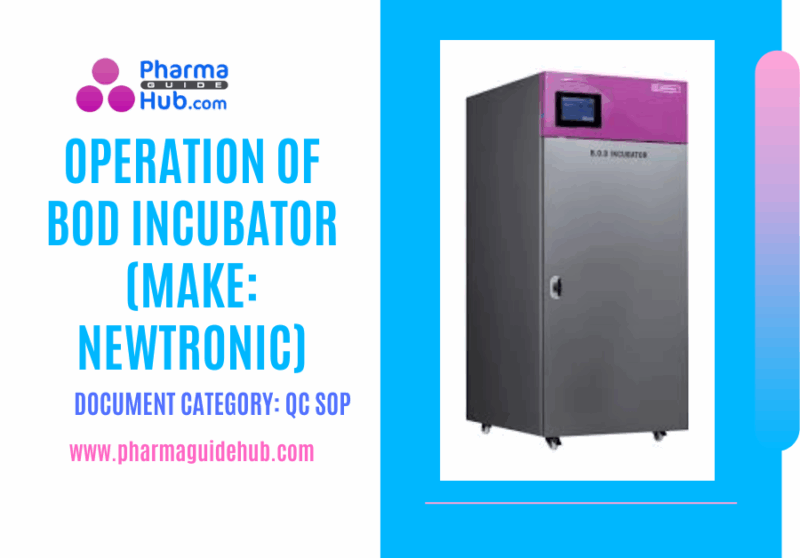
To lay down a procedure for operation of BOD incubator (Make: Newtronic).
SCOPE:
This SOP is applicable to the procedure for operation of BOD incubator at {Company Name} {Location}.
RESPONSIBILITY:
- Officer/Executive/Designee (QC) Micro. – Shall be responsible to follow the procedure as per SOP.
- Head/Designee Quality Control – Shall be responsible for ensuring compliance as per SOP.
ACCOUNTABILITY:
QA Head shall be Accountable for implementation of SOP.
ABOUT BOD INCUBATORS:
BOD (Biochemical Oxygen Demand) incubators are critical in pharmaceutical quality control and research. While their primary function is measuring oxygen depletion in wastewater, in pharma, they provide stable, controlled environments for various applications. They maintain precise temperatures, typically between 20-30°C, essential for microbial growth studies, sterility testing, and drug stability analysis where slight temperature fluctuations could compromise results. Their uniform temperature distribution ensures reliable and reproducible conditions, crucial for validating manufacturing processes, assessing raw materials, and ensuring the safety and efficacy of pharmaceutical products before they reach consumers.
PROCEDURE:
Check electric supply (220 VAC), if required connect the equipment through a suitable voltage stabilizer.
Switch ON the Mains supply of required chamber and set the temperature
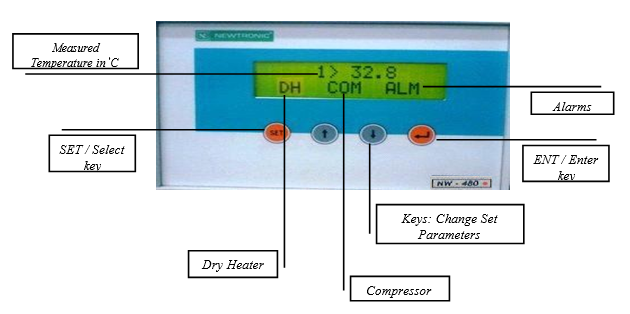
Operation of temperature Controller
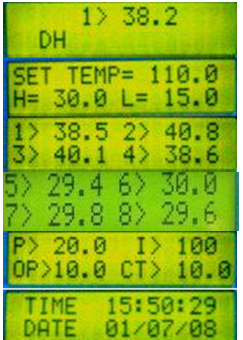
Default window. By pressing up arrow (↑) key following window will be displayed. Set temperature and alarm limits in °C Scanner (8 channels) readings in °C PID parameters for temperature accuracy Time in hh:mm:ss format Date in DD/MM/YY format.
Procedure for Operation of Newtronic Data Management System:
Open the Newtronic software by double clicking the Newtronic ICDAS 1.2 icon on the desktop.
Newtronic ICDAS version 1.2 windows will be displayed.
Click on the “Login” on the right side of the Newtronic ICDAS version 1.2 window.
Enter valid Username and password.
To change the password:
In the File menu, select the Change Password.
Change password window will be displayed.
Enter the current and new password.
The password shall not be more than 10 characters.
Confirm the password.
Click on “Update” button
To change the settings:
In the “Equipment settings” menu, select “Equipment Master”.
Select the Equipment from the “Browse Equipment” tab.
Equipment details will be displayed.
Click on the edit button at the bottom of the window.
The display name, IP Address, Log rate (Time interval for Temperature recording) and other detail can be changed.
Click on “Save” button to save the changes made.
Confirm changes with entering the password.
Click the link to download word file copy of this document:
https://pharmaguidehub.com/product/operation-of-bod-incubator-make-newtronic-2/
Real time display:
Click real time display menu.
Select equipment identification number.
Check set value, low alarm limit and high alarm limit.
Click legends. Indication color of all probes, set value and low & high alarm indication colors will be displayed. Temperature of individual probes can be viewed in real time display
Real time summary:
Click real time summary menu.
Select the equipment identification number to view the set and actual temperature (ºC) of the BOD incubator.
If the set parameters of equipment is maintained properly real time display menu will show online!!!
Input and Output status:
Click input/output status menu.
Select the BOD incubator.
Check relevant input, output and analog input status.
Input status like Mains = ON and Door = Closed, Output status like Dry Heater = ON, Analog input status of temperature probes (Temperature of individual probes in ºC) can be viewed.
Alarm log:
Click alarm log.
Select equipment name, select date from and to, time from and to and click search.
Alarms will be displayed.
Double click the status column of respective alarms, click acknowledge and enter comment then click ok button.
Report:
Click report menu, equipment data log window will be displayed.
Enter the Date and Date To, Time From anfromme To for which the report is required.
Select the equipment name from the drop down list, for which data is required.
Click on the “Search’ button.Details of Temperature from all channels will be displayed.
To print the report, Click on the “Report” button.Click on “Print” button to take print out.
Review the equipment log report and retain the hard copy.
To take print outs “Analysis report” menu on the top of the window can also be selected.
Click graph to view the graphical chart of temperature with tracked time interval.
To view the graph, set minimum and maximum value in Y axis scale; set X axis scale value. Click plot chart to view the selected chart.
To take Backup:
In the “Admin Utilities” menu on the top of the window, click on “Backup Database”.
Create a month wise folder in the C:\ drive (E.g.: Jan. 2028)
Select the path from C:\ drive and click on “Create Backup”.Confirmation of Backup will be displayed.
The frequency of taking backup is: Once in a Month.
Loading and Unloading of Samples in BOD Incubator:
Open the BOD Incubator door, locate the place to keep / remove the sample and load/unload the samples and close the door. Make sure that the door is properly closed, otherwise temperature will drop and accuracy will not be maintained.
During sample placement while loading or unloading, the following should be observed.Free space on the side of the trays should not be blocked by the sample.
Air circulation holes should not be blocked.Sensor should not be covered with samples.
Place the sample plates in day wise as labeled in incubator trays.Shutdown of BOD Incubator
In case BOD Incubator is to be shutdown, the main switch of the BOD Incubator is to be switched ‘OFF’.
When the temperature will fall below low alarm limit, it will generate an alarm. Acknowledge the alarm to silent the hooter.
Alarm condition:
In PLC controller one can define specific value of temperature high alarm, temperature low alarm. The controller will give audio and visual alarm if the measured temperature deviates from set value.
If the mains power supply fails, system should trigger alarm (audible hooter).
Safety precautions:
Ensure that the electrical switches are grounded.
Keep the door of the chamber closed when not in use.
Call the maintenance engineer in case of any breakdown.
Alarm acknowledgement:
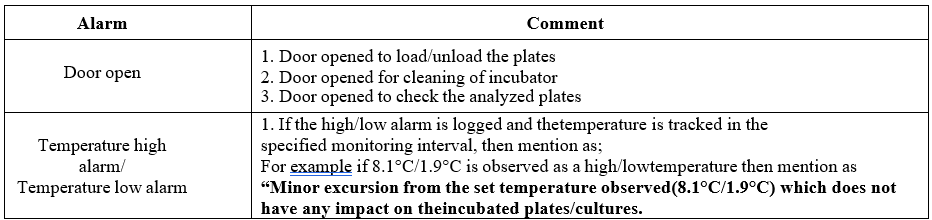
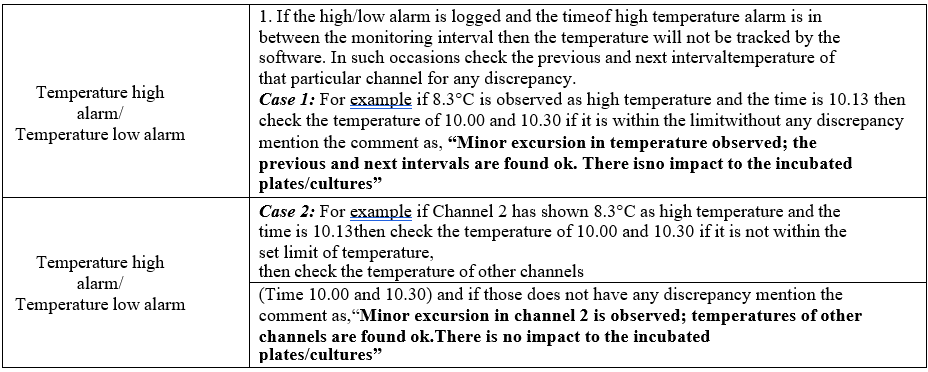
Alarms will be logged in case of following reasons,
Door open
Temperature high alarm
Temperature low alarm
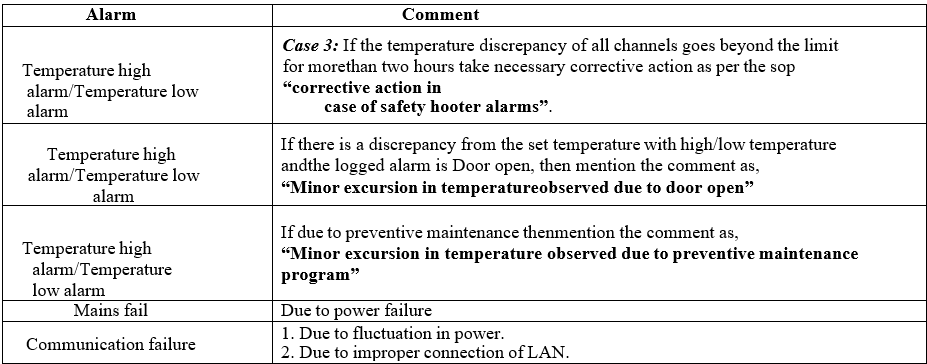
Main fail
Communication failure
To acknowledge the alarm click alarm log menu and select equipment name, select date from and to, time from and to and click search. Alarms will be displayed. Double click the status column of respective alarms, click acknowledge and enter comment then click ok button.
Alarm acknowledgement comments; Acknowledge the alarms with the following comments;
NOTE:
1. Every 30 minutes the software ICDAS monitors the temperature and it is recorded & stored.
2. Take daily printouts from the software, review and retain the reports. In case of holiday take the printout on next working day.
3. Frequency of cleaning shall be once in a week.
4. Click help menu and select help index, Newtronic data management system user guide will be displayed. The entire operation tips can be viewed by the user.
5. Whenever there is a problem in ICDAS software and if the temperature is not tracked in the scheduled intervals, format-II shall be recorded.
REFERENCES:
Not Applicable
ANNEXURES:
| Annexure No. | Title of annexure |
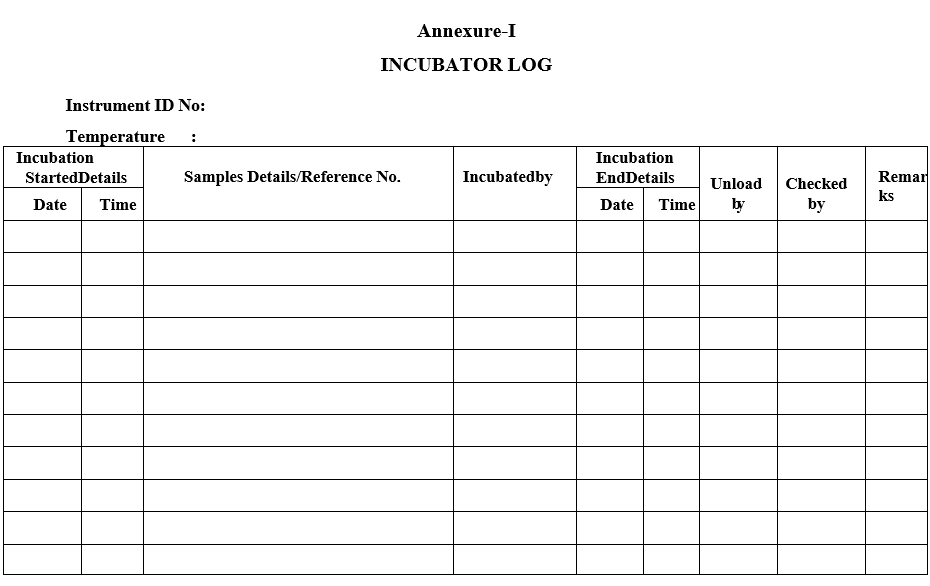
| Annexure-I | Incubator log |
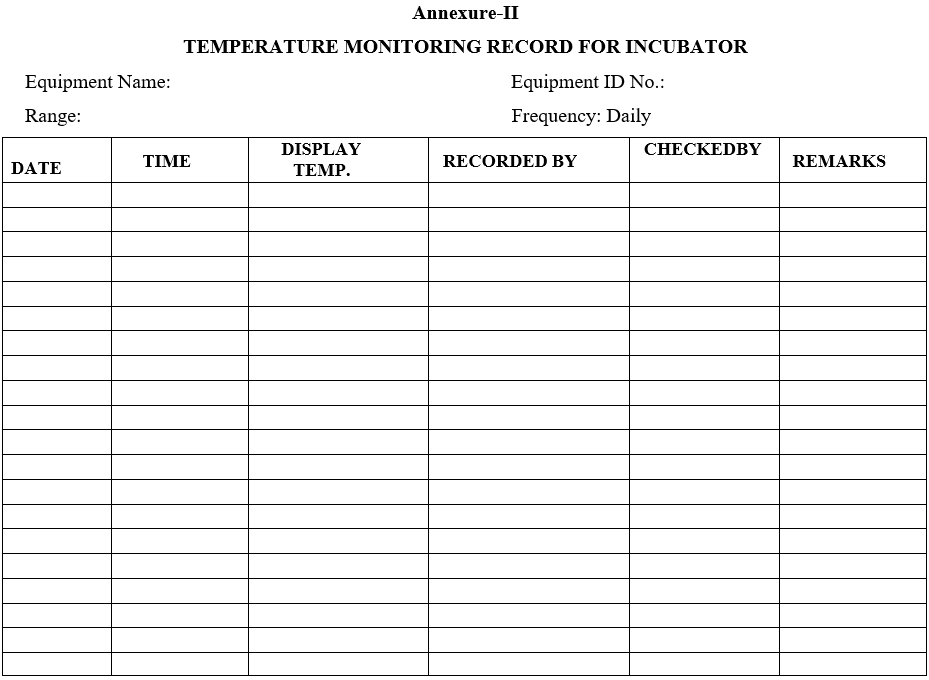
| Annexure-II | Temperature monitoring record for Incubator |
ENCLOSURES: SOP Training Record.
DISTRIBUTION:
Master Copy : Quality Assurance Department
Controlled Copy No. 01 : Head Quality Assurance
Controlled Copy No. 02 : Head QC (Micro.)
ABBREVIATIONS:
| No. | : | Number |
| BOD | : | Biological Oxygen Demand |
| ICDAS | : | Information Date Accuracy Transferring System |
| IPA | : | Iso Propyl Alcohol |
| SOP | : | Standard Operating Procedure |
| QC | : | Quality Control |
REVISION HISTORY:
CHANGE HISTORY LOG
| Revision No. | Details of Changes | Reason for Change | Effective Date |
| 00 | New SOP | Not Applicable |
Annexure-I
INCUBATOR LOG
Annexure-II
TEMPERATURE MONITORING RECORD FOR INCUBATOR
Click the link to download word file copy of this document:
https://pharmaguidehub.com/product/operation-of-bod-incubator-make-newtronic-2/